In this section, I will explain about manage section and category related with writing article management section. I think I should explain it directly. These are the steps :
1. Find the “section Manager “ button.


3. Find the “New” button with plus sign in the bottom right corner.

4. Click the “New” button and then it will show a page like this.

5. Fill the tab with your own desire. For example, I filled the title and alias by “First Section”. And I choose “published” button so that my section can be published.

6. Fill the other requirement too

7. Type any sentence on description or you just leave it like that. It’s all up to you!

8. After all tab have been filled, just click the apply button or save button.


9. Now we will manage ‘category’. The first step that you have to do is go to Category Manager. Find the “Category Manager” button then click it. It will show a new page like shown in the figure below.


10. Find the “new” button on the top right corner page. Then click it. It will show the page like figure below.


11. Fill the details tab. The name of new category is up to you. For example, I create “Culture” category.
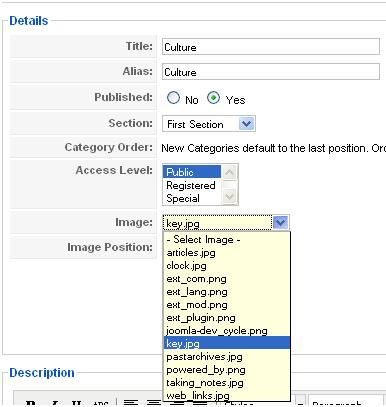
12. Then type the description by your own words or just leave it like that.

13. After all click the save button on the right corner. Then your new category was successfully saved.

14. I have made three categories of it. First is culture, then Education and Entertainment. So I have three categories now.


